

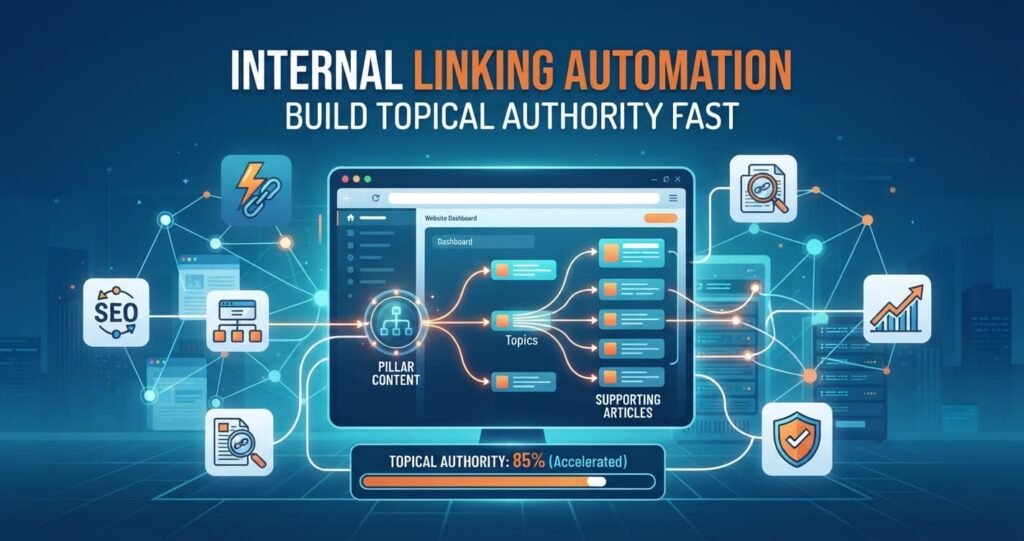
If your content isn’t ranking well on Google, the problem might be a weak internal link structure. Internal links work like digital roads that connect the pages of your site, helping both search engines and visitors find their way around.
Search engines don’t judge pages only by isolated keywords. They also try to understand what a page covers and how it relates to other content on your website. When your articles don’t link to each other logically, it becomes harder to show how your site covers a topic in depth. You can learn more about how Google ranks content in 2026.
Linking pages by hand gets exhausting once your site grows past a few dozen posts. That’s where internal linking automation helps. With the right workflow, you can connect related content across your site without leaving broken or dead-end URLs behind.
Here’s a practical breakdown of how automated internal linking works, why it matters, and how to set it up without hurting user experience.
What Is Automated Internal Linking?
Automated internal linking is the use of software, usually a CMS plugin or an SEO tool, to find relevant pages on your site and suggest or insert links between them. Instead of searching your archive by hand, the tool scans your content, spots related phrases, and proposes links that may fit the context. You can then approve, adjust, or reject each suggestion.
The best setups combine automation with human review. The software finds opportunities and helps catch broken links, while an editor makes sure every link reads naturally and leads to a relevant page.
How Internal Linking Automation Improves Site Architecture
Not long ago, every new blog post meant opening old posts, looking for relevant keywords, and inserting links one by one. On sites with hundreds or thousands of articles, that approach becomes difficult to maintain.
Modern tools such as Link Whisper, Rank Math, and Yoast can scan your content and suggest relevant linking opportunities. The available features depend on the tool and its version.
- Frees up time: Hours of searching through old pages can become a quicker review process.
- Improves crawl access: Internal links give search bots more paths to discover pages deeper within your site.
- Rescues orphan pages: Older articles can receive links from newer, relevant content.
- Keeps context relevant: Some tools analyze page content to suggest links based on topic rather than loose keyword matches alone.
Pillar Pages and Hub-and-Spoke Structure
A pillar page is a comprehensive guide on a broad topic. Cluster posts are narrower articles that cover related subtopics in detail. In a hub-and-spoke structure, cluster posts link to the pillar page, and the pillar page links back to the supporting articles.
This structure helps organize your content and shows how different pages relate to one another. It also gives visitors a clear path to explore a subject in more detail.
To set it up:
- Choose one broad topic and write, or select, a pillar page for it.
- List the subtopics and create or assign a cluster post for each.
- Link every cluster post to the pillar page using a natural anchor.
- Link the pillar page to each cluster post, and add links between closely related cluster posts.
Link Equity: How Authority Flows Through Your Site
Link equity is often discussed alongside PageRank. It refers to the value or signals that can be passed through links. Internal links help connect pages and give search engines more information about their relationships.
- PageRank distribution: Internal links help PageRank flow between pages. Links from important pages can help search engines discover other useful pages.
- Topical clustering: When related posts link to a central guide, they create a clearer connection between that guide and the supporting content.
- Anchor context: The clickable text gives readers and search engines an idea of what the target page covers.
Broken links and orphan pages can interrupt these connections. Fixing them helps visitors navigate your site and makes important content easier to discover.
The Biggest Headaches Creators Face
If you have managed internal links manually, these problems may sound familiar:
- Broken internal links (404 errors): Renaming a URL or deleting a page can leave dead links that frustrate visitors.
- Over-optimized anchor text: Repeating the same target keyword in every link can make your content look unnatural.
- Irrelevant cross-linking: Basic plugins may sometimes connect pages that share keywords but cover different topics.
- Neglected content: Useful articles can become difficult to discover when newer pages don’t link back to them.
- Unnecessary crawling: Broken links and redirect chains can create extra work for crawlers, particularly on large websites.
Smarter Solutions That Actually Work
You can address these problems without giving up control of your site:
- Context-aware plugins: Choose tools that consider sentence context instead of relying only on exact keyword matches.
- Automated audit scans: Run regular scans with Screaming Frog or Ahrefs to find 404 errors and other link issues.
- Hub-and-spoke layouts: Organize content into pillar pages supported by cluster posts.
- Varied anchor text: Use partial matches and natural phrases so links fit the surrounding content.
- Human approval steps: Treat automated suggestions as drafts and review them before publishing.
Step-by-Step: Setting Up Automated Internal Links
1. Map Your Topic Clusters
Group articles into clear categories. Decide which guides are pillar pages and which posts support those main topics. This gives you a better idea of which pages should link to each other.
2. Pick Your Primary Linking Tool
Choose a plugin that fits your website and the features you need. Options include Link Whisper, Rank Math, and Inline Related Posts. Some features may require a paid version, so check the available options before choosing a tool.
3. Set Anchor Text Guidelines
Configure your linking process to use natural, descriptive anchor text instead of forced exact-match keywords. The clickable words should tell readers what they can expect from the linked page.
4. Schedule Automatic Link Audits
Set up regular checks to find changed or missing URLs. When a page has moved permanently, use an appropriate 301 redirect. Also update internal links to point directly to the new URL where possible.
5. Review Before You Publish
Spend a little time checking each suggested link. Read the sentence, open the destination page, and make sure the link fits naturally. Remove suggestions that don’t provide useful information.
6. Track Crawl Performance
Use Google Search Console to check whether important pages are indexed and accessible. You can also use a website crawler to review internal links and identify pages that are difficult to reach.
How to Run an Internal Link Audit
An internal link audit checks the health of the links inside your site. Run one at least once a month, and after any major content change.
- Crawl your site with Screaming Frog, Ahrefs, or a similar tool.
- Find broken links (404 errors) and fix them. If a URL has permanently moved, redirect the old URL with a 301.
- Find orphan pages that have no internal links pointing to them.
- Check redirect chains and update links to point straight to the final URL.
- Review anchor text for over-repeated exact-match phrases.
- Check your key pages, such as pillar pages and important service pages, and confirm they receive relevant contextual links.
- Use Google Search Console to check the indexing status of important pages.
How to Fix Orphan Pages
An orphan page is a page with no internal links pointing to it. Visitors may find it difficult to discover through normal site navigation, and search engines may have fewer paths to reach it.
To fix orphan pages:
- Find them using a crawl report or your linking plugin’s orphan-page report.
- Decide whether each page is still worth keeping. Update it, merge it into a more useful page, or remove it if it no longer serves a purpose.
- For pages worth keeping, add relevant contextual links from related posts and link them to their pillar page. Two to five links can be a starting point, depending on the content.
- Add every new post to your linking plan when you publish it, so it doesn’t remain disconnected from the rest of your site.
Manual vs. Automated Internal Linking
| Feature | Manual internal linking | Automated internal linking |
|---|---|---|
| Execution speed | Slower on large websites | Speeds up link discovery and suggestions |
| Contextual accuracy | Direct editorial control | Depends on the tool and human review |
| Broken link checks | Requires regular checks | Can be monitored with audit tools |
| Scalability | Becomes harder as content grows | Easier to manage across large sites |
| Anchor text variety | Requires deliberate effort | Depends on tool settings and review |
| Topic connections | Requires manual planning | Helps identify possible connections |
How Google Evaluates Your Internal Network
Search engines use internal links to discover pages and understand how topics relate to one another. They can also use anchor text to get more context about the page a link points to.
For example, when several relevant articles link to one central guide, those connections help show how the pages fit together. A clear internal link structure can make important content easier to discover, but it does not guarantee higher rankings. Content quality, relevance, and other SEO factors still matter.
Best Practices to Keep in Mind
Do This
- Use natural, descriptive anchor phrases that fit the paragraph.
- Link supporting articles back to your pillar page.
- Fix broken URLs and update links when pages move.
- Point contextual links toward important service pages and primary guides when relevant.
- Audit your site architecture regularly.
Avoid This
- Auto-inserting thousands of exact-match keyword links.
- Overusing stiff, commercial keywords in every anchor.
- Leaving new articles without incoming internal links.
- Ignoring broken links and unresolved 404 errors.
- Linking unrelated articles just to reach a link quota.
Which Path Works Best?
The ideal strategy is simple: combine automation with human review.
Relying entirely on manual linking slows down the process as your content grows. On the other hand, switching on automatic link insertion without checking the results can create awkward or irrelevant links.
A better approach is to use automation to suggest linking opportunities and find broken links, while an editor reviews suggestions before they go live.
Common Mistakes to Watch Out For
- Blind keyword replacement: Plugins that replace every instance of a word across your site can make text difficult to read.
- Ignoring broken links: Dead 404 links can build up after you delete or update old pages.
- Footer link stuffing: Adding dozens of sitewide links to the footer is not a replacement for useful contextual links in your content.
- Random linking: Adding links without considering their relationship can make your site structure confusing.
FAQ
-
Will automated internal linking get my site penalized by Google?
Using an internal linking tool does not automatically lead to a Google penalty. Problems can arise when links are added excessively or without relevance. Review automated suggestions and avoid forcing exact-match keywords into every link.
-
Do broken internal links affect my rankings?
Broken internal links can frustrate visitors and make it harder to navigate your website. They may also create problems for crawlers trying to reach important pages. Fixing them helps maintain a better site structure, although it does not guarantee a ranking improvement.
-
How many internal links should I include per article?
There is no fixed number that works for every article. Add links where they provide useful information or help readers explore a related topic. The right number depends on the length and subject of your content.
-
What is the difference between a pillar page and a cluster post?
A pillar page is a broad, comprehensive guide on a topic. A cluster post is a narrower article about one subtopic. It links to the pillar page and supports the wider subject.
-
How often should I run an internal link audit?
Monthly checks work as a starting point for many websites. Run audits more often if you publish frequently, change URLs, or delete old content.
Conclusion
Internal linking automation can make managing your website easier as your content library grows. It helps you find relevant linking opportunities, identify orphan pages, and catch broken URLs.
However, automation alone cannot guarantee a good internal linking structure. Every suggested link still needs to make sense in its context and provide value to the reader.
Use automation to save time, review your links regularly, and connect related pages naturally. A well-organized internal linking structure makes your website easier to navigate and helps search engines discover your important content.