

A website can look attractive and still deliver a poor user experience if its pages load slowly, buttons respond late, or content shifts unexpectedly. These problems can frustrate visitors, reduce engagement, and make it harder for users to complete important actions.
Core Web Vitals help website owners understand and measure these performance issues. Whether you manage a WordPress website, an online store, or a custom-built website, improving these metrics can help create a faster, more stable, and more responsive browsing experience.
If you want to learn how to improve Core Web Vitals, the most effective approach is to identify the performance issues affecting your pages and fix their underlying causes. In this guide, you will learn seven practical ways to improve Core Web Vitals, troubleshoot LCP, INP, and CLS issues, and monitor your website’s performance using Google Search Console and PageSpeed Insights.
What Are Core Web Vitals?
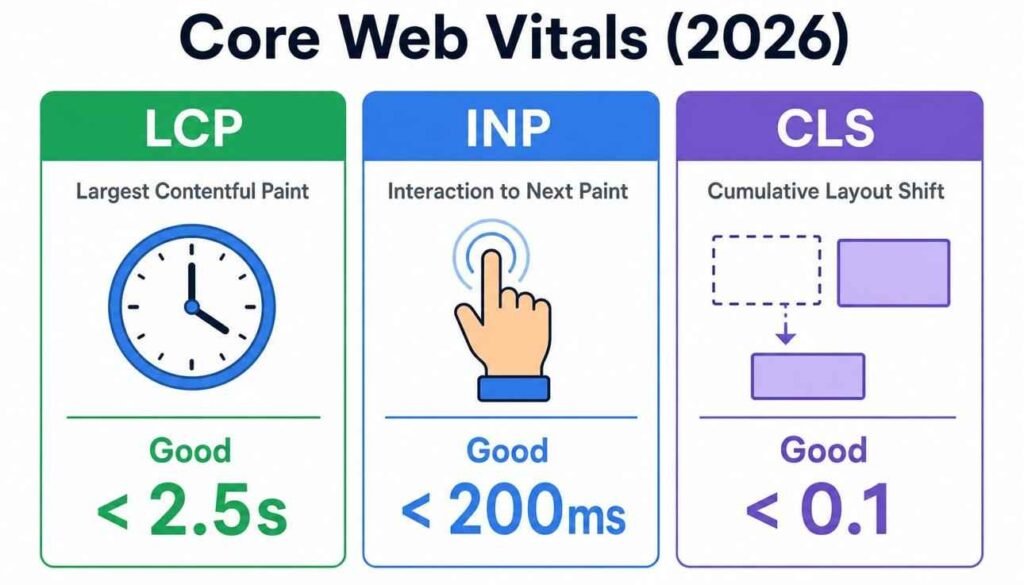
Core Web Vitals are a set of Google metrics that measure three important aspects of user experience: loading performance, interactivity, and visual stability.
Google currently uses three Core Web Vitals metrics: Largest Contentful Paint (LCP), Interaction to Next Paint (INP), and Cumulative Layout Shift (CLS). Each metric measures a different part of the visitor experience.
The Three Core Web Vitals Metrics
| Metric | What It Measures | Good Score |
|---|---|---|
| Largest Contentful Paint (LCP) | How quickly the main content becomes visible | 2.5 seconds or less |
| Interaction to Next Paint (INP) | How quickly a page responds to user interactions | 200 milliseconds or less |
| Cumulative Layout Shift (CLS) | How stable the page layout remains during loading and interaction | 0.1 or less |
These thresholds are evaluated at the 75th percentile of real-user page visits, with mobile and desktop performance assessed separately. Meeting these targets helps provide a better experience for most visitors.
Why Are Core Web Vitals Important for SEO?
Core Web Vitals matter because they help measure the experience people have when visiting your website. A slow-loading page can discourage visitors, while unexpected layout changes can cause users to click the wrong button or lose their place while reading.
Google considers Core Web Vitals as part of its broader page experience signals. However, passing these metrics does not guarantee higher rankings because Google uses many signals to determine search results, including relevance and content quality.
Improving Core Web Vitals can support your SEO efforts by helping you deliver a smoother browsing experience. It can also benefit ecommerce stores, service websites, and blogs by making important content and interactive features easier to use.
How to Improve Core Web Vitals: 7 Proven Fixes
The following seven fixes address common causes of poor loading speed, slow interactions, and unexpected layout shifts. Start with the issues identified in your performance reports rather than applying every optimization blindly.
1. Optimize Images to Improve Largest Contentful Paint (LCP)
Images are often among the largest resources on a webpage. An oversized hero image, featured blog image, or product image can delay the moment visitors see the main content.
Optimizing images is therefore one of the most useful ways to improve Core Web Vitals, especially when LCP is poor.
How to optimize website images:
- Compress image files: Reduce file sizes without noticeably affecting visual quality.
- Use modern image formats: Consider WebP or AVIF when supported by your image delivery workflow.
- Serve responsive images: Deliver appropriately sized images for different screen widths.
- Prioritize the main image: Make sure the LCP image can be discovered and loaded early.
- Lazy-load below-the-fold images: Load images outside the initial viewport when they are needed, rather than delaying the main image.
For example, if your homepage uses a large 2 MB banner image, replacing it with a properly sized, compressed version may reduce the time required to display the main content.
For an image that serves as the LCP element, avoid applying loading="lazy". Depending on how the image is discovered and loaded, appropriate fetch prioritization or preloading may also help.
How to fix LCP issues: If your LCP is above 2.5 seconds, use PageSpeed Insights to identify the largest content element and investigate whether the delay comes from server response time, image loading, render-blocking resources, or element rendering.
Expected benefit: Faster image delivery and potentially better LCP performance.
2. Reduce Server Response Time and Improve Time to First Byte (TTFB)
Your browser cannot display a fully rendered page until it receives the necessary responses from the server. If the server takes too long to respond, it can delay the entire loading process.
Time to First Byte (TTFB) measures the time between a browser requesting a resource and receiving the first byte of the response. Although TTFB is not itself a Core Web Vital, it can help identify server-side delays that contribute to poor LCP.
Ways to improve server response time include:
- Choose reliable hosting: Use hosting that can handle your website’s traffic and resource requirements.
- Enable full-page caching: Serve stored page responses when appropriate instead of generating every page from scratch.
- Use a content delivery network (CDN): Distribute eligible resources through servers closer to your visitors.
- Optimize database queries: Reduce unnecessary database work on dynamic websites.
- Review backend processing: Investigate slow plugins, themes, API calls, or application code.
For WordPress websites, caching and hosting improvements can be particularly helpful when dynamic page generation is creating delays. However, caching should be configured carefully for personalized pages, shopping carts, and logged-in users.
Expected benefit: A faster initial server response and improved opportunities to reduce LCP.
3. Reduce Unused JavaScript and Improve Interaction to Next Paint (INP)
JavaScript powers many website features, including menus, forms, sliders, filters, and interactive elements. However, excessive or inefficient JavaScript can keep the browser busy and delay responses to user actions.
Interaction to Next Paint (INP) measures the responsiveness of a page throughout a visitor’s interactions. A good INP score is 200 milliseconds or less at the 75th percentile.
For example, a visitor may click a navigation menu, submit a form, or open a product filter. If the browser is processing a long-running JavaScript task, the page may not respond promptly.
How to improve JavaScript performance:
- Remove scripts and libraries that the website no longer needs.
- Minify JavaScript files to reduce their transfer size.
- Defer non-critical scripts when appropriate.
- Use code splitting to load features when they are needed.
- Break long-running tasks into smaller tasks.
- Review third-party scripts, including chat widgets, advertising tags, and tracking tools.
You can use Chrome DevTools to identify long tasks and inspect how JavaScript affects responsiveness. Lighthouse can also help identify potential performance problems, although its Total Blocking Time (TBT) metric is a laboratory indicator rather than a direct measurement of field INP.
How to fix INP issues: Identify the interactions that respond slowly, then investigate JavaScript execution, expensive event handlers, excessive DOM updates, and unnecessary third-party scripts. Improving the responsiveness of one button does not automatically resolve every INP issue across the page.
Avoid removing scripts simply because they are large. First confirm that they are unnecessary or responsible for the performance issue, and test any changes to ensure essential features continue to work.
Expected benefit: More responsive buttons, menus, forms, and other interactive elements.
4. Prevent Layout Shifts to Improve Cumulative Layout Shift (CLS)
Have you ever started reading an article only for the text to move down when an image appears? Or tried clicking a button just as an advertisement pushes it to another position?
These are examples of unexpected layout shifts.
Cumulative Layout Shift measures the visual stability of a webpage by assessing unexpected changes in the position of visible elements. A good CLS score is 0.1 or less.
How to reduce CLS:
- Specify image dimensions: Set appropriate
widthandheightattributes or reserve space using CSSaspect-ratio. - Reserve space for advertisements: Allocate a suitable container before an advertisement loads.
- Avoid inserting content above existing content: If banners or notifications appear dynamically, ensure they do not unexpectedly displace the page.
- Handle web fonts carefully: Use suitable fallback fonts and font-loading strategies to reduce disruptive text changes.
- Use stable animations: Prefer CSS transforms and opacity animations instead of properties that trigger layout changes.
For example, adding explicit dimensions to a featured image allows the browser to reserve the required space before downloading the image.
A useful implementation looks like this:
<img
  src="featured-image.webp"
  width="800"
  height="450"
  alt="Featured article image"
>
The dimensions should reflect the image’s actual aspect ratio. CSS can then control how the image fits within a responsive layout.
How to fix CLS issues: Use Chrome DevTools or PageSpeed Insights to investigate unexpected layout shifts. Pay particular attention to images without dimensions, advertisements, dynamically injected content, and font changes.
Expected benefit: A more stable page that is easier to read and interact with.
5. Eliminate Render-Blocking CSS and JavaScript
When a browser loads a webpage, it must process certain resources before it can render the page. Some CSS files and JavaScript resources can delay the first meaningful display of content if they are not delivered efficiently.
This is particularly important for visitors using slower mobile networks or less powerful devices.
Ways to reduce render-blocking resources:
- Remove unused CSS rules and unnecessary stylesheets.
- Minify CSS and JavaScript files.
- Inline small amounts of genuinely critical CSS when appropriate.
- Defer non-critical JavaScript.
- Load scripts asynchronously when their execution order does not need to be preserved.
- Avoid loading large libraries for features that are not immediately required.
For example, a simple blog page may not need a large JavaScript library designed for complex interactive applications. Removing unnecessary dependencies can reduce the amount of code the browser must download, parse, and execute.
However, not every stylesheet should be loaded asynchronously, and not every script can safely use async or defer. Changes must account for dependencies and rendering requirements.
Expected benefit: Earlier page rendering and potentially improved LCP.
6. Use Browser Caching and a CDN to Deliver Resources Faster
Websites repeatedly serve resources such as logos, CSS files, JavaScript files, and images. Without suitable caching, returning visitors may need to download these resources again.
Browser caching allows eligible resources to be stored locally, while a content delivery network (CDN) can serve cached content from geographically distributed servers.
Together, these techniques can reduce unnecessary downloads and improve resource delivery.
How to implement caching effectively:
- Configure suitable
Cache-Controlheaders for static assets. - Use long cache lifetimes for versioned files that rarely change.
- Update asset URLs or version identifiers when files change.
- Use a CDN to serve static resources closer to visitors.
- Enable page caching where appropriate.
- Confirm that updated stylesheets and scripts appear correctly after cache invalidation.
For example, a visitor who returns to your website may be able to reuse a previously downloaded logo and stylesheet rather than fetching them again.
Caching does not solve every performance problem. A page can still have poor LCP because of a slow server, an oversized hero image, or a resource that is discovered too late. Test the website after configuring caching to verify the actual effect.
Expected benefit: Reduced repeat-download overhead and potentially faster resource delivery.
7. Monitor Core Web Vitals Using Google Search Console and PageSpeed Insights
Performance optimization should be based on measurements rather than assumptions. A website can achieve a high laboratory performance score while real visitors still experience slow loading or poor responsiveness.
Two particularly useful tools are Google Search Console and PageSpeed Insights.
Google Search Console
The Core Web Vitals report helps you understand how real users experience groups of URLs on your website. It identifies URLs with good, needs improvement, or poor performance based on available field data.
Use it to identify recurring problems across similar pages, such as blog posts, product pages, or landing pages.
PageSpeed Insights
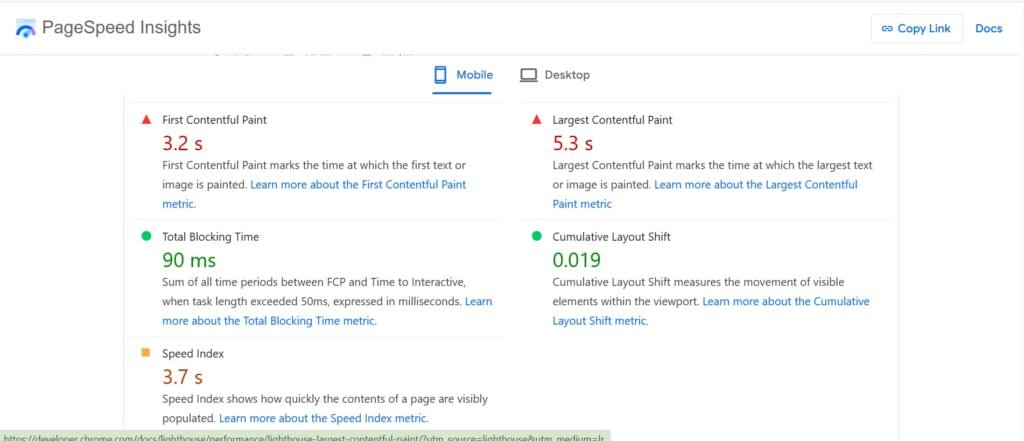
PageSpeed Insights combines field data from the Chrome User Experience Report, when available, with laboratory diagnostics from Lighthouse.
It can help you identify issues such as oversized images, render-blocking resources, inefficient JavaScript, and layout shifts.
Core Web Vitals Field Data vs. Lab Data
Understanding the difference between field data and lab data is important when evaluating website performance.
Field data comes from real users visiting your website under different devices, network conditions, and browsing circumstances. It helps show how visitors actually experience your pages.
Lab data comes from controlled tests using a defined testing environment. Tools such as Lighthouse use lab tests to identify potential performance bottlenecks and provide diagnostic recommendations.
The two types of data serve different purposes:
| Feature | Field Data | Lab Data |
|---|---|---|
| Source | Real-user experiences | Controlled testing environment |
| Main purpose | Evaluate actual user experience | Diagnose performance problems |
| Conditions | Vary by device, network, and user behavior | Defined by the test environment |
| Availability | Depends on sufficient eligible data | Can generally be generated on demand |
| Best use | Monitor real-world performance | Investigate and test potential fixes |
A page may achieve a strong Lighthouse performance score while still having poor field data. This can happen because real visitors use different devices, interact with different page elements, or experience varying network and server conditions.
Use lab data to investigate potential causes, then monitor field data to determine whether your improvements benefit real visitors. Remember that field data can take time to reflect changes.
A Practical Monitoring Process
- Open Google Search Console and review the Core Web Vitals report.
- Identify the affected URL groups and the metric that needs improvement.
- Test representative URLs using PageSpeed Insights.
- Review the diagnostics and prioritize fixes according to their likely impact.
- Implement one group of changes at a time.
- Test again to confirm that the changes worked.
- Monitor field data over time to evaluate the real-user results.
Expected benefit: Better prioritization, measurable improvements, and ongoing performance monitoring.
How to Improve Core Web Vitals on WordPress
WordPress websites can experience Core Web Vitals problems because of themes, plugins, large images, page builders, third-party scripts, and hosting limitations. The best solution depends on which issue is affecting the website.
If you want to improve Core Web Vitals on WordPress, start with these practical steps:
- Optimize images: Compress large images and serve appropriately sized WebP or AVIF files where suitable.
- Review plugins: Remove plugins that are unnecessary and investigate those that add excessive scripts or stylesheets.
- Configure caching: Use an appropriate page-caching and browser-caching setup for your hosting environment.
- Improve hosting performance: Investigate slow server responses, database delays, and resource limitations.
- Optimize page builders and themes: Reduce unnecessary widgets, animations, and assets that load across every page.
- Test changes carefully: Confirm that caching and JavaScript optimization do not break forms, navigation, checkout, or other important features.
For example, a WordPress blog with poor LCP may benefit from optimizing its featured image and improving server response time. A page with poor INP may require investigating scripts loaded by plugins or interactive widgets. A poor CLS score may result from images without dimensions or advertisements that shift page content.
Avoid installing several optimization plugins that perform the same tasks. A simpler, well-configured setup is often easier to maintain and troubleshoot.
The same diagnostic principles apply to Shopify and custom-built websites, although the available optimization options differ by platform.
Common Core Web Vitals Mistakes to Avoid
Even when website owners understand performance optimization, some common mistakes can limit their results.
Focusing only on the PageSpeed Insights score: A score is useful, but the underlying metrics and diagnostics matter more than chasing a perfect number.
Lazy-loading the LCP image: Lazy-loading an image that needs to appear immediately can delay the main content.
Installing too many optimization plugins: Multiple caching or optimization plugins can create conflicts, duplicate processing, or broken layouts.
Ignoring mobile performance: Desktop results do not necessarily reflect the experience of visitors using mobile devices.
Removing scripts without testing: Unnecessary JavaScript should be removed, but essential functionality must remain intact.
Expecting immediate ranking improvements: Better Core Web Vitals can support page experience, but they do not guarantee ranking gains.
The most effective strategy is to identify the actual bottleneck, apply the appropriate fix, and verify the result.
How Long Does It Take to Improve Core Web Vitals?
The time required depends on the severity and cause of the problem.
Simple fixes, such as resizing oversized images or specifying image dimensions, may be implemented relatively quickly. More complex problems involving server performance, JavaScript architecture, or third-party integrations can require additional development work.
Laboratory results may change as soon as an optimization is deployed, but real-user field data generally needs time to accumulate. Google Search Console may also take time to reflect changes.
Rather than expecting every URL to become good immediately, prioritize the pages that matter most to your business and monitor their performance consistently.
FAQ
1. How Can I Improve Core Web Vitals Quickly?
Start by identifying the weakest metric in Google Search Console or PageSpeed Insights. Optimize large images to improve LCP, reduce JavaScript execution delays to improve INP, and reserve space for images and advertisements to reduce CLS.
2. Do Core Web Vitals Affect Google Rankings?
Yes, Core Web Vitals are part of Google’s page experience signals. However, good scores do not guarantee higher rankings because Google also considers content relevance, quality, and other ranking factors.
3. What Is a Good Core Web Vitals Score?
A good score means LCP is 2.5 seconds or less, INP is 200 milliseconds or less, and CLS is 0.1 or less, measured at the 75th percentile of real-user visits.
4. How Can I Improve Core Web Vitals on WordPress?
Optimize images, configure caching, use reliable hosting, remove unnecessary plugins, and reduce unused JavaScript and CSS. Test each change to ensure your website continues to function correctly.
5. What Is the Difference Between Core Web Vitals Field Data and Lab Data?
Field data measures real users’ experiences, while lab data comes from controlled performance tests. Use field data to evaluate actual performance and lab data to identify and troubleshoot specific issues.
Conclusion
Learning how to improve Core Web Vitals is an important part of technical SEO and website performance management. A faster, more responsive, and visually stable website can provide a better experience for visitors and support your broader SEO strategy.
Start by measuring LCP, INP, and CLS, then focus on the issues that have the greatest effect on your users. Optimize images, improve server response time, reduce unnecessary JavaScript, prevent layout shifts, eliminate avoidable rendering delays, configure caching, and monitor results through Google Search Console and PageSpeed Insights.
If you manage a WordPress website, pay particular attention to plugin performance, theme assets, image optimization, and caching configuration. For all websites, use field data to evaluate the actual visitor experience and lab data to investigate specific problems.
The key is to measure, optimize, and test. Consistent, evidence-based improvements are more valuable than chasing a perfect performance score without understanding what is slowing your website down.

One Response